What's on this page
- Before you start
- Step 1: Choose a subject with visible change over time
- Step 2: Mount the camera and lock the composition
- Step 3: Set manual exposure to prevent flicker
- Step 4: Calculate your interval and frame count
- Step 5: Run the sequence with an intervalometer
- Step 6: Manage power and storage for a long run
- Step 7: Assemble the frames into a video
- Timelapse beyond sunsets
- A worked example: one sunset session from start to finish
- Common mistakes to avoid
- Troubleshooting the trickiest moments
- Your timelapse checklist
- The bottom line
Short answer: Timelapse photography works by mounting the camera on a tripod, switching to full manual exposure and white balance so nothing shifts between frames, and firing a fixed interval of still shots, commonly every 2 to 30 seconds depending on the subject, over a planned duration. Those frames are then assembled into a video at 24 or 30 frames per second, compressing minutes or hours of real time into a few seconds of visibly fast motion.
A timelapse asks a camera to do something that happens too slowly for a single frame to show: clouds reshaping overhead, a sunset sliding through its colors, a street filling and emptying with people, all unfold over minutes or hours that a normal photograph cannot compress. Capture that same stretch of time as hundreds of individual stills instead, played back at ordinary video speed, and the slow change becomes visible motion, often the most striking footage a stationary camera can produce. The idea is simple enough to explain in one sentence. Getting a smooth, flicker-free result that actually matches what you planned takes a handful of settings locked down in the right order, which is what trips up most first attempts.
This field note treats timelapse as a long exposure and manual exposure technique built on fundamentals covered elsewhere on this site, so it leans on sibling field notes rather than re-explaining them. The manual exposure mechanics in Step 3 build on our walkthrough of manual mode and our exposure triangle field note, the tripod choice in Step 2 is covered in full in how to choose a tripod, and a night sky timelapse draws on the same foundation as our field note on photographing the night sky. Price your own kit as you read with the upgrade budget planner.
Key takeaways
- A timelapse is a fixed-interval sequence of still frames, assembled afterward into video at 24 or 30 frames per second, so slow real-world change reads as fast motion.
- Full manual exposure, white balance, and focus, locked before the sequence starts and untouched through every frame, is what prevents visible flicker from one frame to the next.
- Your interval should match your subject: 2 to 5 seconds for fast clouds or traffic, 10 to 30 seconds for a slow sunset, 20 to 30 seconds for star movement.
- Frame count is duration divided by interval, and finished clip length is frame count divided by your playback frame rate; work backward from the clip length you want.
- A long sequence consumes meaningfully more battery and card space than ordinary shooting, so plan for a full battery and genuinely spare storage before starting.
Before you start
Timelapse photography is beginner-friendly in terms of the actual button presses, since most of the work is a handful of settings locked in before you press start, but it rewards patience because a single sequence can run anywhere from 20 minutes to several hours and you will not see the finished result until it is assembled afterward. Difficulty sits in planning rather than execution: choosing a subject that genuinely changes over your available time, picking an interval that matches that change, and resisting the urge to touch anything once the sequence begins. Plan on dedicating real time to a session, since a timelapse worth watching usually needs at least 20 to 30 minutes of real-world shooting to produce a satisfying few seconds of finished video.
Here is the short kit list, in rough order of how much each item changes the result:
- A tripod, non-negotiable, since even a slight drift between frames shows up as an unwanted shift or shake once the sequence plays back at speed.
- A camera with manual exposure control, essential for preventing flicker, covered in full in Step 3.
- An interval timer, either built into the camera’s shooting menu or an external intervalometer remote, covered in the FAQ above.
- Spare batteries and ample memory card space, since a long sequence writes far more individual files than ordinary shooting.
- A subject that visibly changes over your available shooting window: moving clouds, a sunset, star movement, or traffic and crowds are the reliable starting points.
With that gathered, the seven steps below take you from an empty tripod to one finished clip. Run your own interval and duration plan through the upgrade budget planner before you head out.
Step 1: Choose a subject with visible change over time
Start with the subject, because it decides every setting that follows. The most reliable beginner subjects share one trait: visible change that unfolds steadily over minutes rather than happening all at once. Moving clouds against a clear patch of sky are the classic starting point, since they shift noticeably within a few minutes and forgive a wide range of intervals. A sunset or sunrise works nearly as well, trading cloud motion for a slow, continuous shift in color and brightness that rewards a longer interval and a longer total runtime. Star trails or a rotating night sky, traffic streaming through an intersection, and a slowly filling or emptying public space are each strong subjects with their own interval needs, covered individually in the companion above.
The watch-out: avoid a subject that looks almost identical from the first frame to the last. A nearly static scene with only subtle change produces a flat, unconvincing timelapse no matter how carefully the rest of the technique is executed, while a scene with obvious, continuous motion forgives small exposure or framing imperfections. If you are unsure whether a scene has enough visible change, watch it for two or three minutes with your own eyes before setting up; if nothing meaningfully shifted in that window, look for a different subject or a longer total runtime.
Step 2: Mount the camera and lock the composition
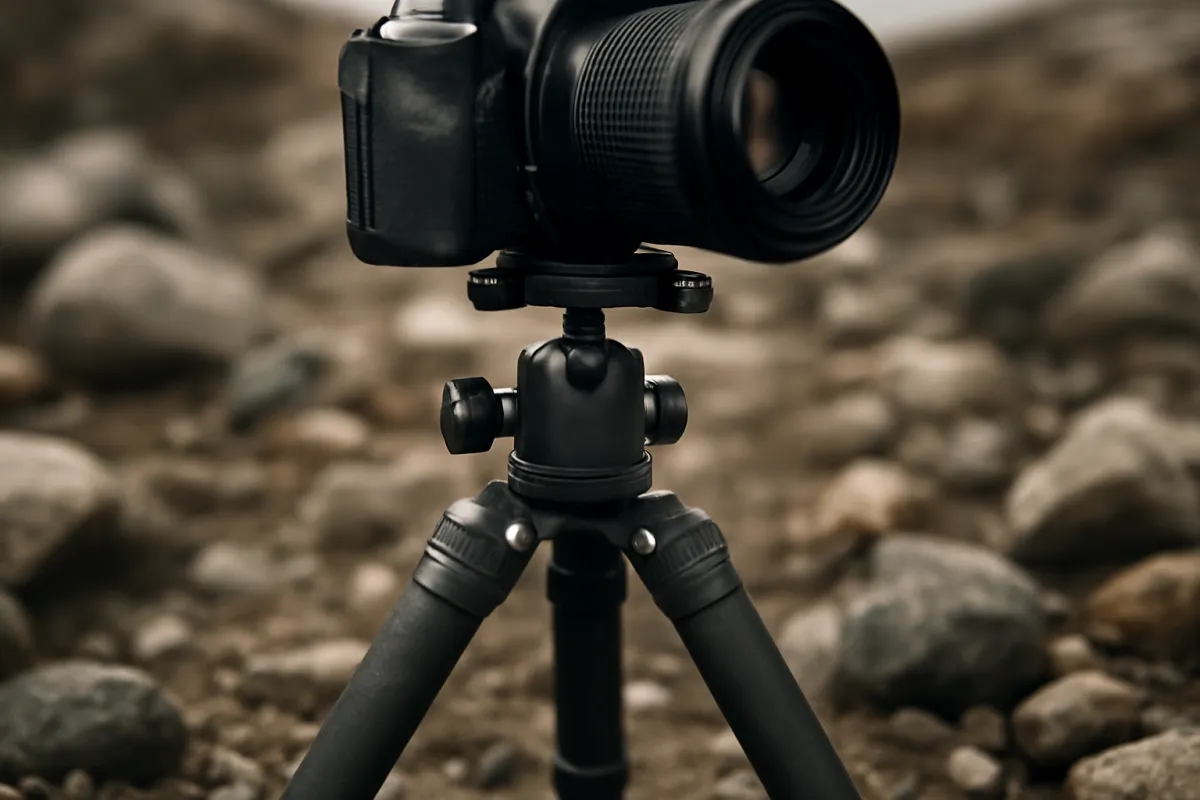
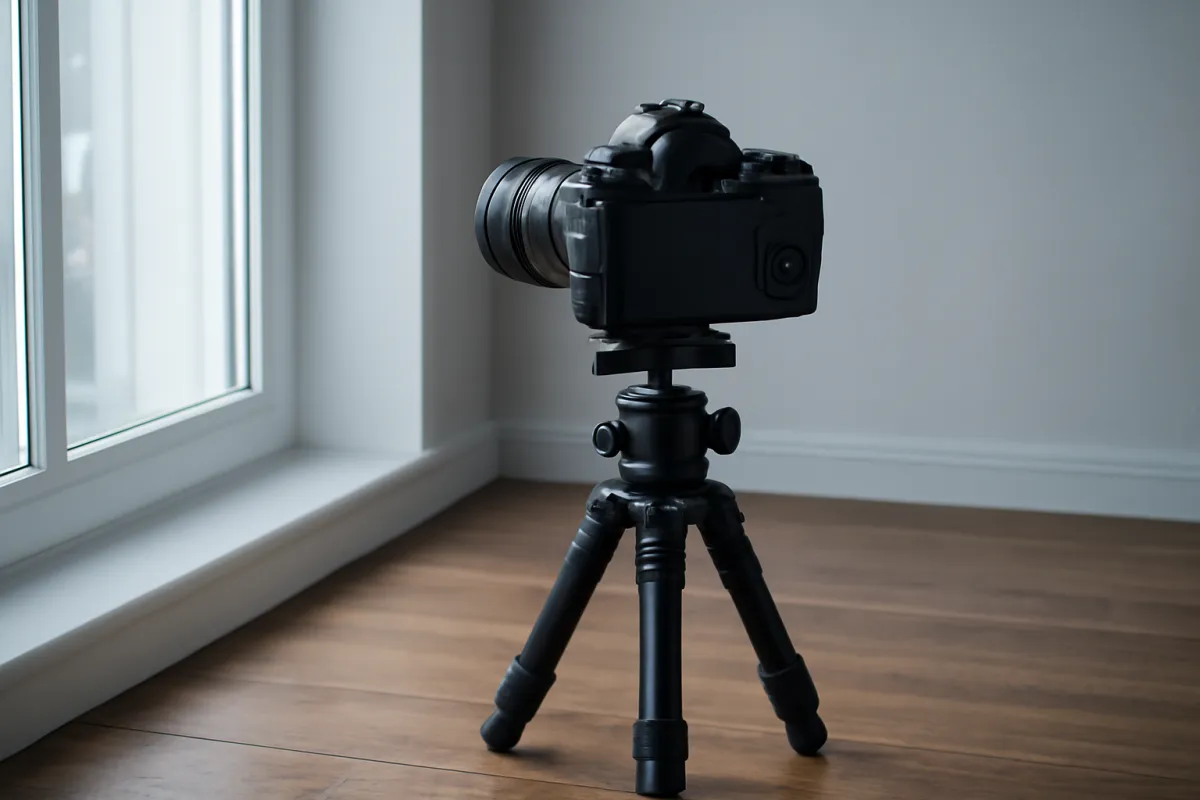
A tripod is not optional here in the way it sometimes is for other techniques; even a small amount of drift between frames reads as an obvious, distracting shift once the sequence plays back at speed, since the eye is extremely sensitive to repeated small jumps in an otherwise static frame. Set the tripod on the most solid footing available, extend the legs fully rather than relying on a raised center column for height if wind is a factor, and weight the center hook with a bag if you have one and conditions are breezy. Our tripod field note covers the full buying decision if you do not already own one suited to a long outdoor session.
Compose the frame with the full arc of expected change in mind, not just how the scene looks at the moment you start. A sunset timelapse should leave room in the frame for the color to spread as the sky develops, and a cloud sequence benefits from a composition with a clear foreground anchor, a tree, a building, a ridge line, that stays static and gives the viewer’s eye something fixed to measure the sky’s motion against. Lock any tripod head adjustments firmly once framed, and resist the temptation to recompose partway through a sequence, since any camera movement between frames breaks the illusion of a single continuous shot.
The watch-out: if you are shooting outdoors for an extended period, check the weather and lighting forecast for your whole planned window before committing, since a cloud bank rolling in halfway through a sunset sequence, while sometimes a happy accident, more often ends a carefully planned shoot early.
Step 3: Set manual exposure to prevent flicker
This is the step that separates a smooth timelapse from a flickering one. Switch the camera fully to manual exposure mode, which hands you aperture, shutter speed, and ISO directly rather than letting the camera re-evaluate and adjust any of them between frames. Automatic and semi-automatic modes are the dominant cause of visible flicker, a pulsing shift in brightness from one frame to the next, because the camera’s meter reacts to small, normal variations in the scene, a cloud passing in front of the sun, a car’s headlights sweeping through, by nudging the exposure slightly, and those small nudges become obvious once dozens of frames play back in rapid succession.
Set white balance manually as well, rather than leaving it on auto, since an automatic white balance system can shift color temperature slightly between frames exactly the way automatic exposure shifts brightness, producing a subtler but still visible color flicker. Pick a fixed Kelvin value or a preset that matches your lighting and leave it untouched for the whole sequence. Lock focus manually too, since autofocus hunting between frames, even briefly, can introduce a soft frame or a visible focus shift partway through the run.
The watch-out: a small amount of flicker can persist even with everything locked manually, usually from a lens whose aperture blades do not return to an identical position every time they close down, a mechanical quirk rather than a settings mistake. Manual exposure minimizes this dramatically compared to any automatic mode, but a few dedicated flicker-reduction tools in editing software exist specifically to smooth out whatever small variation remains after the shoot.
Illustrative starting interval by subject
A rough starting point scaled to how quickly each subject visibly changes. Confirm with a short test sequence before committing to a long run.
Bar length tracks the high end of each illustrative interval range as a share of the widest shown (30 seconds). A faster-changing subject needs a shorter interval to read as smooth motion; a slower one can skip more time between frames without looking choppy. The companion above adapts this to your own plan.
Step 4: Calculate your interval and frame count
With exposure locked, work out the numbers before you start the sequence rather than guessing and checking partway through. Total frame count is your planned shoot duration divided by your interval: a 30 minute shoot at a 10 second interval produces 180 frames. Your finished clip length is that frame count divided by your playback frame rate, commonly 24 or 30 frames per second: 180 frames at 24 fps plays back as 7.5 seconds of video. The companion above runs this calculation live for your own interval, duration, and frame rate.
It often helps to work backward from the finished clip length you actually want rather than forward from a duration that feels convenient. If you want a 10 second clip at 24 fps, you need 240 frames; at a 10 second interval that means 40 minutes of real-world shooting, while at a 5 second interval it drops to 20 minutes. Shorter intervals produce smoother motion but demand more total shooting time for the same finished clip length, and they also produce more individual files to manage afterward, so the tradeoff runs in both directions.
The watch-out: do not set an interval shorter than your camera needs to actually write each file to the card and be ready for the next shot, since some camera and card combinations cannot keep up with a very short interval at full resolution, and a missed frame here and there shows up as an uneven, stuttering jump in the finished playback. Run a short test sequence of 10 to 15 frames at your intended interval first and confirm every frame actually captured before committing to the full run.
Step 5: Run the sequence with an intervalometer
With your interval and frame count set, start the sequence using either your camera’s built in interval timer, found in the shooting menu on many mirrorless bodies and a growing number of DSLRs, or an external intervalometer remote plugged into the camera’s remote port if your body lacks the built in option. Enter your chosen interval and total frame count, or a start and stop time if your camera’s menu offers it, double-check the settings against what you calculated in Step 4, and start the sequence.
Once running, the discipline is simple: leave the camera alone. Do not touch the focus ring, the aperture, the zoom if you are using a zoom lens, or the tripod head for the entire duration, since any of those introduces a visible jump or shift into an otherwise smooth sequence. If your camera’s screen stays active and displays each frame as it is captured, consider turning that display off for a long sequence, since it adds a small additional drain on the battery with no benefit once you have confirmed the first several frames look correct.
The watch-out: step away periodically to check on conditions rather than staring at the camera the entire time, but check back often enough to catch a problem early, a person walking into frame and stopping, a lens cap left half attached, a tripod leg sinking slightly into soft ground, since catching an issue 5 minutes into a 40 minute sequence costs far less than discovering it only once the whole run is finished.
Step 6: Manage power and storage for a long run
A timelapse consumes battery and card space at a rate ordinary shooting never approaches, since a 40 minute sequence at a 10 second interval is 240 individual full-resolution exposures, each one a complete file written to the card and a complete cycle of sensor activity drawn from the battery. Start every session with a fully charged battery, and bring a spare if your camera supports swapping one without losing the sequence, since a dead battery partway through ends the run with no way to recover the frames you were missing. Some cameras support external power through a dedicated adapter for genuinely long sessions, a useful option for anything running several hours.
Card space follows the same math. Estimate your total frame count from Step 4, multiply by your camera’s typical file size for a single frame at your chosen quality setting, and confirm you have meaningfully more free space than that estimate before starting, since running out of space ends the sequence exactly like a dead battery does. A card that fills with 20 minutes left in a planned hour-long sunrise sequence cannot be swapped without risking a gap or a camera bump, so err generously rather than cutting it close.
The watch-out: cold weather drains batteries faster than their stated capacity would suggest, which matters directly for a sunrise or night sky sequence shot in cool conditions; keep a spare battery warm in an inner pocket rather than in the camera bag if you are shooting somewhere cold, and swap it in only if truly needed given the gap a swap introduces.
A 40-minute timelapse session: where the effort goes
Illustrative split of where the work lands across a typical session, from setup through the final edit.
Timelapse photography is dominated by the run itself, since once the settings are locked the camera does the repetitive work unattended. Adjust the split to your own session length with the companion above.
Step 7: Assemble the frames into a video
Once the sequence finishes, the individual stills need to become one video clip. Most photo editing and video editing software can import a numbered sequence of images directly and treat each one as a single video frame at whatever playback rate you choose, commonly 24 or 30 frames per second; set the rate, confirm the frames are ordered correctly, and export. This route preserves the most control over color grading, exposure smoothing across the sequence, and final resolution, since you are working from the full-resolution stills rather than a pre-compressed output. Our field note on editing photos for beginners covers the general editing workflow this step draws on.
Some cameras also offer an in-camera timelapse movie option that builds a finished video automatically as the sequence shoots, skipping the separate assembly step entirely. This is genuinely convenient, especially for a quick result you want to review immediately, but it typically caps the output resolution well below what the individual still frames actually captured, so a sequence you plan to crop, stabilize, or display large benefits from assembling the full-resolution stills afterward instead.
The watch-out: before exporting a final clip, scrub through the assembled sequence at full speed and watch for any single stray frame, a person who walked through, a bird that landed on the lens, a sudden exposure jump, since one bad frame among hundreds is easy to miss in a quick preview but reads as an obvious glitch once the finished clip plays back smoothly otherwise.
Timelapse beyond sunsets
Sunsets and clouds dominate timelapse photography because the change is obvious and the shoot fits into a single evening, but the same seven steps apply to subjects that unfold over a very different timescale. A night sky timelapse, star movement or the Milky Way shifting across the frame, trades a short daylight interval for a much longer individual exposure: each frame might run 15 to 25 seconds on its own at a wide aperture and a high ISO to gather enough light, with the interval set just slightly longer than the exposure itself so frames run back to back with almost no gap. Readers of our night sky field note already have the exposure fundamentals this version of the technique leans on; the only addition is the interval timer running the same long exposure over and over rather than firing once.
Multi-day timelapses, a garden growing, a construction project progressing, a building site changing over weeks, stretch the interval dramatically in the other direction, from seconds out to minutes or even hours between frames. These sessions trade the challenge of a single afternoon’s battery and card management for a different set of problems entirely: weatherproofing a camera left outdoors for days or weeks, a reliable external power source since no battery survives that long unattended, and a completely fixed mount that cannot drift even slightly over an extended period, since a tripod nudged on day three throws off the alignment of every frame that follows. A locked, weatherproofed housing and a wall or mains power connection are the practical additions a long-duration project needs beyond the core technique.
Controlled, indoor subjects, a flower blooming, ice melting, a candle burning down, sit at the opposite end from a multi-day outdoor project: same core technique, but with light and exposure far easier to hold perfectly consistent since nothing about the environment is changing except the subject itself. A single, fixed light source, rather than daylight through a window that shifts through the day, removes almost all of the exposure-matching work that Step 3 handles for an outdoor scene, since nothing in the room is prompting the camera to want a different reading from one frame to the next. This controlled version is also the easiest place to practice the full seven-step workflow before committing to a longer outdoor session, since a short indoor test costs an afternoon rather than a missed sunset.
The watch-out across every variation: the subject changes, but the discipline does not. Manual exposure, a locked mount, and a resisted urge to touch anything mid-sequence are exactly as important for a three-day construction timelapse as they are for a 40 minute sunset, and the interval and total duration are the only numbers that genuinely need to change between them.
A worked example: one sunset session from start to finish
Theory into practice: here is a single realistic session run through all seven steps, with illustrative settings, so the sequence is concrete. The plan is a sunset timelapse from a hillside overlook, shot over roughly 40 minutes as the sky moves from daylight through full color to dusk.
Step 1, subject. The overlook faces west with a mostly clear sky and scattered clouds forecast to drift through during the session, a strong combination of slow color change and some cloud motion for visual interest. Step 2, mount and compose. The tripod is set on flat rock with legs fully extended against a light breeze, framed with a distant ridge line along the lower third of the frame to anchor the sky’s motion above it. Step 3, exposure. Manual mode is set, metered for the mid-point of the expected light, roughly f/8, 1/125, ISO 100, with white balance fixed at a daylight preset and focus locked manually on the ridge line.
Step 4, calculation. A 10 second interval over a planned 40 minute session works out to 240 frames, which at 24 fps plays back as exactly 10 seconds of finished video, matching the companion’s output for these inputs. Step 5, running. The camera’s built in interval timer is set to 240 frames at 10 seconds apart and started; the photographer steps back and checks in every 5 minutes, confirming the ridge line anchor remains level and no one has walked into frame. Step 6, power. A fully charged battery goes in at the start, with a spare kept in an inner jacket pocket as the evening cools, though the swap is never needed since the session finishes within the primary battery’s capacity.
Step 7, assembly. Back at the computer, all 240 frames import as a sequence at 24 fps; a light exposure smoothing pass evens out a small amount of flicker from two frames where a cloud briefly crossed the sun, and the final clip exports as a 10 second sunset timelapse. Run your own duration and interval plan through the upgrade budget planner.
Common mistakes to avoid
Most disappointing timelapse attempts fail in one of a handful of predictable ways, and knowing them in advance is the fastest route to a cleaner result. These are the pitfalls that come up again and again:
- Shooting in an automatic or semi-automatic exposure mode. The camera re-meters between frames and introduces visible flicker. Lock aperture, shutter speed, and ISO fully in manual mode.
- Leaving white balance on auto. A shifting color temperature between frames produces a subtler but still visible color flicker. Set a fixed value before starting.
- Choosing a subject with too little visible change. A nearly static scene produces a flat, unconvincing result no matter how clean the technique. Watch the scene for a few minutes first to confirm it changes.
- Touching the camera mid-sequence. Any adjustment to focus, zoom, or the tripod head introduces a visible jump. Set everything before starting and leave it alone.
- Running out of battery or card space partway through. The sequence simply ends with no way to recover missing frames. Estimate your needs generously before starting.
- Setting too short an interval for the camera to keep up. A missed or delayed frame here and there shows as an uneven, stuttering jump. Test a short run first at your intended interval.
- Skipping the test sequence. Discovering a settings mistake only after a 40 minute run has finished wastes the entire session. Shoot 10 to 15 test frames first and review them.
Troubleshooting the trickiest moments
Timelapse sequences rarely go perfectly on the first attempt, so here is how to handle the conditions that fight you. What if the finished clip has a visible pulsing in brightness? This is flicker, almost always from an exposure or white balance setting left on automatic; confirm every value, aperture, shutter speed, ISO, and white balance, was genuinely locked in manual mode and not quietly readjusted by the camera partway through.
What if one or two frames in the middle of the sequence look wildly different from the rest, far brighter, far darker, or out of focus? A single stray frame usually traces back to something passing through briefly, a bird, a person, a reflection, or a rare missed autofocus lock if focus was not fully manual. Most assembly software lets you delete or replace an individual frame before exporting, so isolate it on the timeline and swap in a neighboring frame rather than scrapping the whole sequence.
What if the motion in the finished clip looks choppy or stuttering rather than smooth? This usually means the interval was too long relative to how quickly the subject changed, or the camera genuinely missed writing some frames at too short an interval; review the raw frame count against what you expected from Step 4, and if frames are missing, lengthen the interval slightly on your next attempt so the camera has time to write each file before the next shot fires.
Your timelapse checklist
Save this and run down it before your next session:
- Choose a subject with genuine, visible change over your available shooting window.
- Mount the camera on a solid tripod and compose with the full arc of change in mind.
- Switch to full manual exposure, lock white balance, and set focus manually.
- Calculate your interval, total frame count, and finished clip length before starting.
- Set your interval timer, in camera or an external intervalometer, and double-check the numbers.
- Start a short test sequence first and confirm every frame captured correctly.
- Leave the camera untouched for the full run, checking in periodically without adjusting anything.
- Confirm a full battery, a spare if possible, and card space well beyond your estimated need.
- Assemble the sequence in software at your chosen frame rate, scrubbing for any stray frame.
The bottom line
Timelapse photography comes down to locking down everything that could change between frames so that only your subject actually does: full manual exposure, fixed white balance, locked focus, and a steady tripod, paired with an interval matched to how quickly your subject moves. None of it requires exotic gear, since most mirrorless cameras and many DSLRs already include the interval timer this technique needs, and a basic tripod and a few hours of patience cover the rest. Start with a subject that genuinely changes, a cloud-filled sky or a slow sunset, lock every setting before you start, and let the camera do the repetitive work while you check in rather than hover. Price your own timelapse kit in the upgrade budget planner, then go find forty minutes and a subject worth compressing into ten seconds.
This field note is written to teach a timelapse workflow, not to sell any camera, intervalometer, or editing software: no brand paid for a placement and none is named on purpose, only settings and techniques that carry across every system. All intervals, exposure values, and frame counts described are illustrative starting points rather than fixed rules, because the right numbers change with your own subject, available time, and camera, so test a short sequence and judge the result before committing to a long run.
Frequently asked questions
What is timelapse photography and how does it work?
Timelapse photography captures a long sequence of still frames at a fixed interval, then plays them back at normal video speed so that slow real-world change, clouds drifting, a sunset fading, a crowd moving, compresses into a few seconds of visibly fast motion. An hour of sky captured once every five seconds becomes 720 frames, which play back in 30 seconds at 24 frames per second, so thirty minutes of real time becomes one second of finished video. The technique needs nothing exotic: a camera that can be set to fire repeatedly at a fixed interval, a steady mount, and a consistent exposure across every frame.
Do I need a special intervalometer, or does my camera have one built in?
Many mirrorless cameras and a growing number of DSLRs now include a built in interval timer in the shooting menu, often labeled interval timer shooting or a similar name, which handles the whole sequence without extra gear. Older or more basic bodies that lack this menu option need an external intervalometer, a small remote that plugs into the camera's remote port and is programmed with the interval, frame count, and start delay. Check your specific camera's shooting menu first; the feature is more common than many photographers realize, and only reach for an external unit once you have confirmed it is genuinely missing.
What interval should I use between frames?
There is no single correct interval, since it depends entirely on how fast your subject changes: fast moving clouds or a busy street read well at 1 to 5 seconds between frames, a slow sunset or sunrise transition can skip 10 to 30 seconds without losing smoothness, and star trails or night sky movement typically use 20 to 30 seconds to balance exposure length against star drift. The companion on this page adapts an illustrative starting interval to your own subject and planned shoot length; shoot a short test sequence first and review the playback before committing to a long run.
How do I stop my timelapse from flickering?
Flicker, a visible pulsing in brightness from one frame to the next, is almost always caused by the camera re-metering and changing its exposure slightly between frames, which happens constantly in any automatic or semi-automatic mode. The fix is full manual exposure: lock the aperture, shutter speed, ISO, and white balance before the sequence starts, and leave every one of them untouched for the entire run. A small amount of flicker can still appear from a lens whose aperture blades do not return to an identical position every time, which manual exposure minimizes but cannot always eliminate completely; a handful of dedicated flicker-reduction tools in editing software can smooth out what remains.
Will a timelapse drain my camera's battery or memory card?
Yes, more than ordinary shooting, since a timelapse is effectively hundreds or thousands of individual full-resolution exposures rather than a handful of frames. A sequence running for an hour at a short interval can land well into four figures of individual files, each consuming a full share of card space and a share of battery life to write and, if the screen stays active, to display. Start with a full battery, bring a spare if your camera supports one, and confirm you have meaningfully more free card space than the sequence should need before you start, since running out partway through ends the sequence with no way to recover the missing frames.
Can I shoot a timelapse with my phone instead of a dedicated camera?
Yes, and many phones now include a dedicated timelapse mode that handles the interval and frame assembly automatically, adjusting its own capture rate based on how long you let it record. The tradeoff is control: a phone's automatic timelapse mode usually picks its own interval and exposure behavior rather than letting you set either precisely, and some models re-meter more aggressively between frames than a locked manual camera exposure would, which can show as flicker in trickier lighting. A phone mounted on a small tripod is a genuinely reasonable way to learn the technique and get a usable result; a camera in full manual mode gives you the precise control this field note walks through.
How long should my timelapse run, and how many frames do I need?
Total frame count is simply your planned shoot duration divided by your interval, and your finished clip length is that frame count divided by your chosen frames per second for playback, commonly 24 or 30. A 30 minute shoot at a 10 second interval produces 180 frames, which plays back as 6 to 7.5 seconds of video. Most satisfying timelapse clips run at least a few seconds, so work backward from the finished length you want: a 10 second clip at 24 fps needs 240 frames, which at a 10 second interval means 40 minutes of real-world shooting. The companion above runs this calculation for your own numbers.
How do I turn my timelapse photos into a video?
Most photo editing and video editing software can assemble a numbered sequence of still images into a video clip directly, treating each still as one video frame at whatever playback rate you set, commonly 24 or 30 frames per second. Some cameras also offer an in-camera option that builds a finished video automatically as the sequence shoots, which is convenient but typically caps the output resolution below what assembling the full-resolution stills afterward would preserve. Either route works; assembling from the full-resolution stills in software gives you the most control over color, exposure smoothing, and final resolution before export.