
What's on this page
- Before you start
- Step 1: Decide whether to shoot in camera or blend in software
- Step 2: Set manual exposure and underexpose each frame
- Step 3: Choose a clean silhouette subject and light it for shape
- Step 4: Shoot the second frame for texture, not just brightness
- Step 5: Combine the frames using lighten blend mode
- Step 6: Fine-tune in software even after an in-camera blend
- Step 7: Review the blend against your original intent
- Double exposure beyond portraits
- A worked example: one portrait session from start to finish
- Common mistakes to avoid
- Troubleshooting the trickiest moments
- Your double exposure checklist
- The bottom line
Short answer: Double exposure photography blends two frames into one image, typically a silhouette as the first layer and a textured scene as the second, either using a camera's built in multiple exposure mode set to lighten blend, or by shooting both frames separately and combining them afterward in editing software. Underexpose each frame by roughly a stop so the combined result lands at a normal exposure instead of blowing out.
A double exposure asks a camera to do something it was never built for by default: hold two separate moments inside one frame at the same time. The effect, a person’s silhouette filled with tree branches, a face made of city lights, a profile built from clouds, has been part of photography since film era cameras could be wound back without advancing, and it survives into digital photography both as a dedicated camera feature and as a simple two-layer blend in editing software. The hard part is not the button press. It is choosing a silhouette clean enough to read clearly and a texture rich enough to be worth seeing through it, and exposing both so the combination lands somewhere readable instead of a blown out wash of light.
This field note treats double exposure as a compositional and exposure technique built on fundamentals covered elsewhere on this site, so it leans on sibling field notes rather than re-explaining them. The manual exposure control in Step 2 builds on our walkthrough of manual mode and our exposure triangle field note, the subject and background choices in Step 3 connect to our composition field note, and the software blending route in Step 6 builds on our field note on editing photos for beginners. Price your own kit as you read with the upgrade budget planner.
Key takeaways
- A double exposure needs two frames: a clean silhouette as the first layer and a textured scene as the second, blended either in camera or afterward in software.
- Underexpose each individual frame, commonly by a stop or more, so the combined result lands at a normal exposure instead of overexposing where the two frames overlap.
- Lighten blend mode is the most forgiving starting point, since it keeps only the brighter pixel from either frame at each point rather than adding their brightness together.
- A simple, high-contrast silhouette against a plain bright background reads far more clearly once filled with a second layer than a busy or low-contrast subject does.
- Two exposures are easier to control than three or four; master the basic blend before adding more layers on purpose.
Before you start
Double exposure photography is beginner-friendly in terms of the button presses involved, since most of the technical work is a menu setting or a blend mode dropdown, but it rewards planning more than most techniques, because you are composing two separate images that need to work together before you see the combined result. Plan a session where you can shoot a silhouette subject and then, ideally the same day or shortly after, shoot several candidate texture frames, since trying combinations later gives you far more flexibility than committing to one pairing in camera on the spot. Difficulty with the in-camera route is genuinely higher than the software route, since a camera’s multiple exposure mode commits the blend permanently once both frames are shot, while software lets you try several pairings before choosing one.
Here is the short kit list, in rough order of how much each item changes the result:
- A camera with manual exposure control, essential either way, since deliberately underexposing each frame is central to the technique.
- A plain, bright background for your silhouette subject, a clear sky, a white wall, an open doorway, anything that lets the subject read as a clean dark shape.
- A texture-rich second scene, tree branches, city lights, clouds, water, anything with enough internal detail to be worth seeing through the silhouette.
- A tripod, optional but genuinely useful if you are shooting both frames in camera and want them precisely aligned, since a handheld pair can drift enough to look messy rather than intentional.
- Basic editing software, needed only for the software blending route in Step 6, though even a phone’s free photo editor usually includes layers and blend modes now.
A phone can cover a surprising amount of this list too. Several phone camera apps now include a built in double exposure or layering mode, and even without one, a phone’s default photo editor usually supports layers and a blend mode good enough to follow the software route in Step 6. A dedicated camera with full manual control still gives the most predictable result, since you can lock exposure precisely rather than trusting a phone’s automatic metering to land where you want it, but a phone is a genuinely reasonable place to learn the technique before investing in anything else.
With that gathered, the seven steps below take you from two separate frames to one blended image. Run your own gear plan through the upgrade budget planner before you shoot.
Step 1: Decide whether to shoot in camera or blend in software
Before anything else, choose your route, since it changes how you shoot both frames. The in-camera route uses your camera’s multiple exposure mode, found in the shooting menu on most mirrorless bodies and many DSLRs, which captures two or more frames back to back and blends them live according to a blend mode you select before shooting, typically lighten, additive, or average. The appeal is commitment and immediacy: you see a version of the finished blend on the back of the camera moments after the second frame, and nothing about the process needs a computer afterward.
The software route shoots both frames as completely ordinary, separate exposures, each composed and judged as if it were a standalone photo, and blends them afterward using layers and a blend mode in editing software. The appeal is control: you can reposition, resize, flip, or mask either layer before committing, try a silhouette against several different texture candidates in a few minutes, and undo a bad combination without having wasted a camera-committed frame. For a first attempt, the software route is the more forgiving starting point, since a disappointing in-camera result cannot be undone, while a disappointing software blend just means trying the next texture candidate.
The watch-out: do not assume your camera lacks a multiple exposure feature just because it is not on the mode dial. Check the shooting menu specifically, since most brands bury it there rather than giving it a dedicated physical control, and the feature is more common on recent mirrorless bodies than many photographers realize.
Step 2: Set manual exposure and underexpose each frame
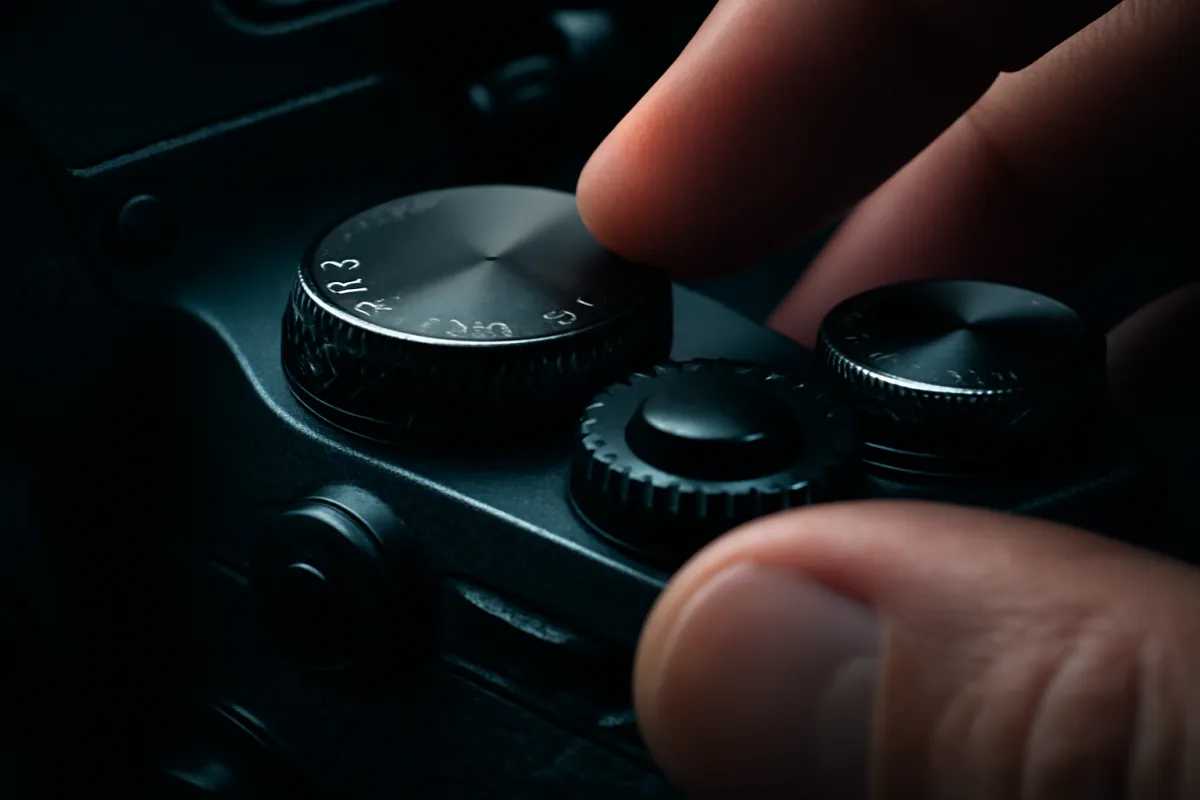
Whichever route you chose in Step 1, switch to manual exposure mode so you control exactly how bright each individual frame is, rather than letting the camera’s meter aim for a normal exposure on each one independently. This matters because combining two normally exposed frames very often produces an overexposed result, since you have effectively layered two full doses of light information onto the same pixels. The fix is to deliberately underexpose each frame, an illustrative starting point of one stop under for a two-frame blend using lighten mode, or closer to one and a half to two stops under per frame if you are using additive blend mode, which sums brightness more aggressively than lighten does.
If your camera’s multiple exposure mode includes an automatic exposure adjustment option, which some brands offer specifically for this purpose, it can handle this calculation for you by metering each frame slightly darker automatically once it knows how many frames you plan to combine. If shooting the software route, simply dial in your usual manual exposure and subtract roughly a stop from what the meter suggests for each frame, since you are blending them later rather than letting the camera do it live.
The watch-out: test this once before committing to your real subject. Shoot a quick two-frame test, check the blended result or layer it quickly in software, and confirm your chosen amount of underexposure is landing the combination at a normal brightness rather than too dark or still too bright, adjusting by a half stop before your actual session.
Step 3: Choose a clean silhouette subject and light it for shape
The first frame is almost always the silhouette, and its job is to provide a clean, recognizable outline for the second frame to fill. Position your subject against a plain, bright background, an open sky, a white wall, a bright window, so the exposure for the silhouette naturally renders them as a near-solid dark shape against that brightness. A profile or a three-quarter turn generally reads more clearly as a recognizable shape than a straight-on pose, since the outline carries more information about what the viewer is looking at. Our composition field note covers the broader logic of using silhouette and backlight deliberately, which applies directly here.
Keep the subject’s clothing and immediate surroundings simple. A patterned shirt, a cluttered background, or stray objects breaking the outline all compete with the texture you are about to blend in, turning a clean two-layer composition into a muddled three or four layer mess the viewer cannot parse. If you are shooting a self-portrait or working with a willing model, a few test frames checking the silhouette alone, with no second exposure yet, is worth the extra few minutes, since a weak silhouette undermines every choice that follows it.
The watch-out: avoid shooting the silhouette frame so dark that all detail in the shape itself disappears into pure black with no gradation, since a small amount of texture retained within the silhouette, especially around hair or clothing edges, often reads as more natural than an absolutely flat black cutout.
Step 4: Shoot the second frame for texture, not just brightness
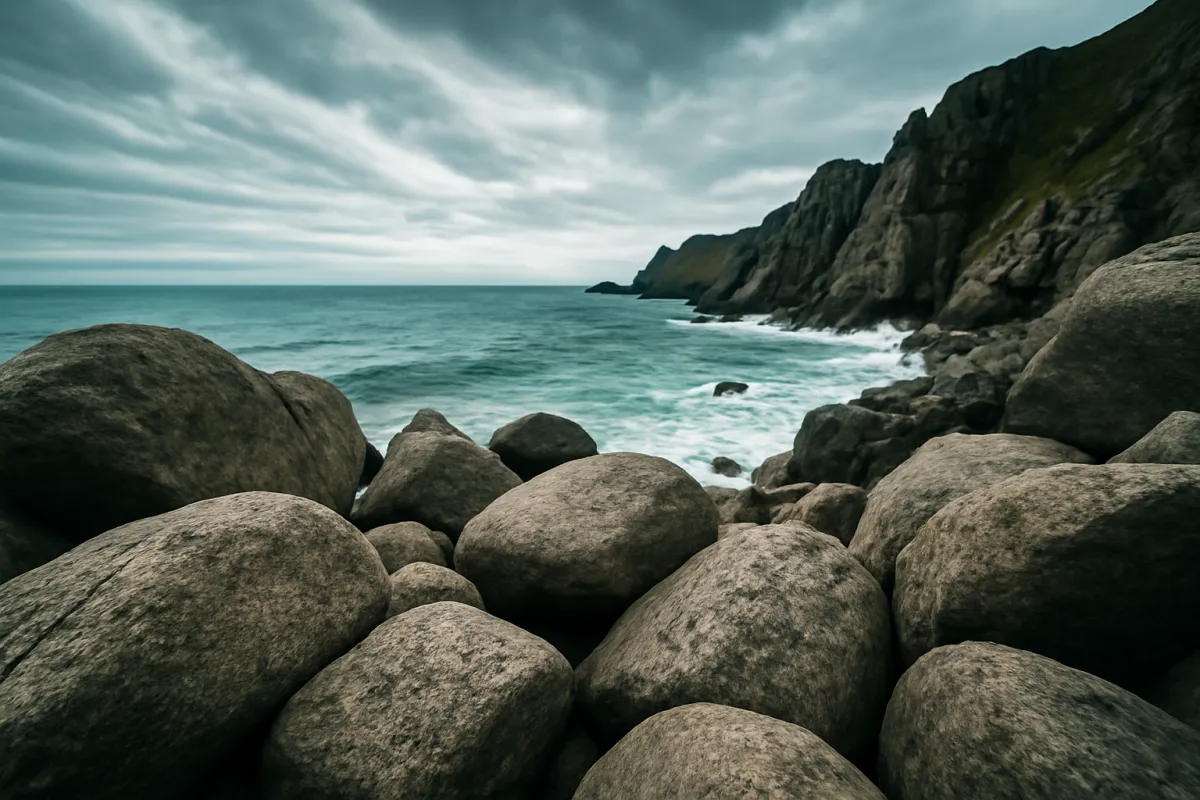
The second exposure’s job is different from the first: instead of a clean shape, you want rich texture and visual interest, since this is the layer that will show through the silhouette once blended. Tree branches against a bright sky, a dense forest canopy, city lights at dusk, clouds, water reflections, or architectural detail all work well, because each offers varied brightness and shape across the frame rather than one flat tone. A completely even, textureless sky or wall makes a poor second layer, since there is nothing for the silhouette to reveal once the blend happens; the whole point of this layer is giving the viewer something new to discover inside the first frame’s outline.
Composition for the second frame does not need to match the first frame’s framing exactly, especially if you are using the software route from Step 1, since you can reposition it afterward to sit correctly within the silhouette. If shooting in camera, most multiple exposure modes show a faint preview of the first frame overlaid as you compose the second, which lets you deliberately place a strong texture element, a cluster of branches, a bright patch of sky, roughly where it will do the most good inside the silhouette’s shape, typically across the head and shoulders for a portrait.
The watch-out: shoot several candidate second exposures rather than just one, especially if working in software, since you will not know which texture reads best inside your specific silhouette until you actually try the combination, and a scene that looked promising on its own sometimes disappoints once blended, while an unexpected one works beautifully.
Step 5: Combine the frames using lighten blend mode
With both frames captured, combine them. If using an in-camera multiple exposure mode, confirm the blend mode is set to lighten, sometimes labeled compare lighten or lighten only, before shooting the second frame, since this is what tells the camera to keep whichever pixel is brighter between the two frames at every point rather than adding or averaging them. Lighten mode is the most forgiving starting choice because a dark silhouette combined with a bright texture naturally lets the texture show through the dark areas while the already-bright parts of the texture frame stay dominant, producing the classic look without extensive exposure math.
If blending in software instead, bring both images in as separate layers, place the texture frame above the silhouette frame, and set that top layer’s blend mode to lighten or screen, which behaves similarly for this purpose. Nudge the texture layer’s position and scale until the most interesting part of its detail sits where you want it inside the silhouette’s shape, typically the head and upper body for a portrait. This is where the software route’s flexibility pays off most clearly: you can try the same silhouette against three or four different texture layers in the time it would take to reshoot a single in-camera pair.
The watch-out: do not default to additive or average blend modes for a first attempt, since both demand more precise exposure control to avoid a washed out or flat result, covered in the FAQ above. Get comfortable with lighten mode’s more forgiving behavior first, then experiment once you understand how your specific frames respond to it.
How exposure compensation changes by blend mode and frame count
Illustrative starting points for how much to underexpose each individual frame before combining, scaled to blend mode and how many frames you are stacking.
Bar length tracks total stops of underexposure needed as a share of the largest value shown (3 stops), since additive mode sums brightness across every frame while lighten mode only keeps the brightest pixel at each point, which is why additive needs roughly double the compensation of lighten for the same frame count. Confirm with a test blend and adjust from there; the companion above adapts this to your own plan.
Step 6: Fine-tune in software even after an in-camera blend
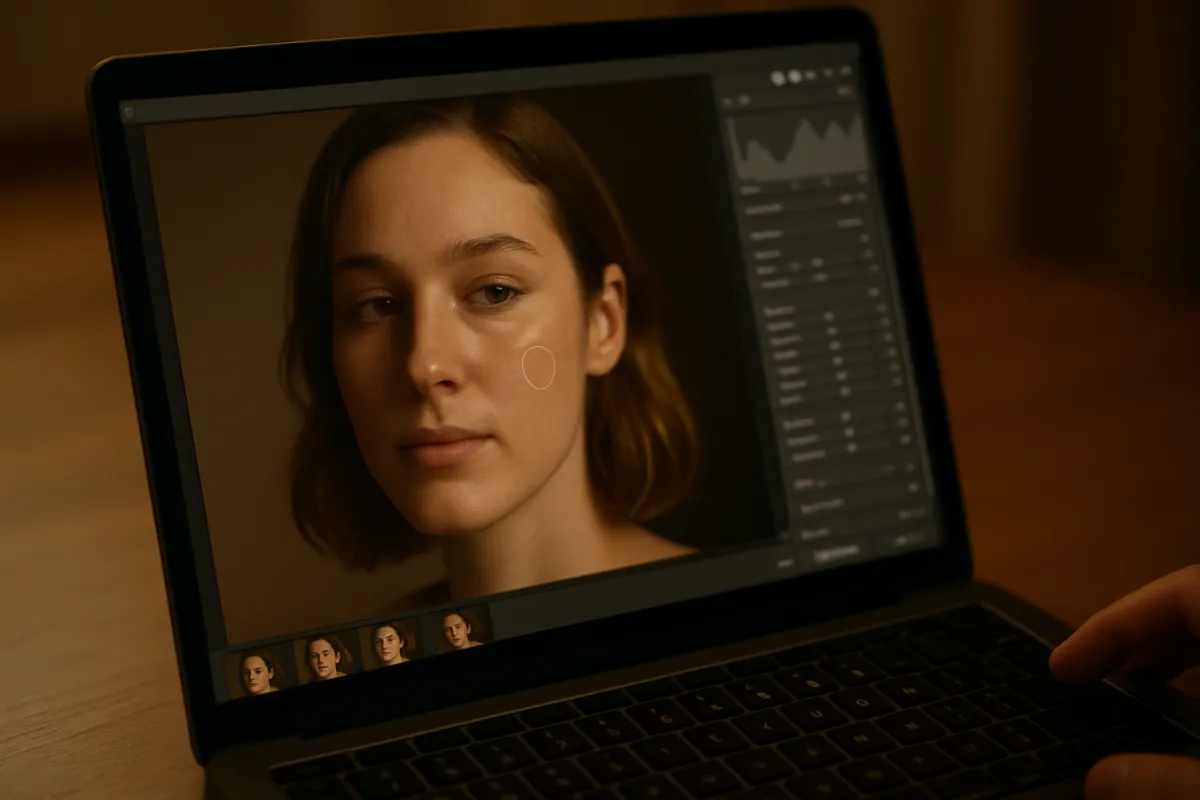
Even a successful in-camera double exposure usually benefits from a short pass in editing software afterward, since a few adjustments are much easier to make on the combined file than to have predicted perfectly beforehand. Check contrast first: a double exposure can sometimes look slightly flat straight out of camera, since the blending process compresses some of the tonal range, and a modest contrast boost often restores the punch of the original silhouette and texture separately. Our field note on editing photos for beginners covers the general workflow this step draws on.
If you shot the software route from Step 1, this step is where the real composing happens rather than just touching up: refine the texture layer’s blend, mask out any part of it you do not want showing in areas outside the silhouette if it is spilling over unintentionally, and adjust each layer’s individual brightness and contrast before flattening the image. A soft feather on any mask edge usually looks more natural than a hard cutout line, since real double exposures rarely have perfectly crisp boundaries between the two layers.
The watch-out: avoid over-sharpening or over-saturating a double exposure once it is blended, since the combined image already carries more visual complexity than a single frame, and pushing contrast, sharpness, and saturation all further than you would on an ordinary photo tends to make the result look processed rather than intentional.
Step 7: Review the blend against your original intent
Before calling a double exposure finished, step back and judge it the way a first-time viewer will: does the silhouette read clearly as what it is meant to be, and does the texture inside it add something worth looking at twice, rather than just reading as noise or confusion. A double exposure that requires an explanation to understand what is silhouette and what is texture usually needs another pass, either a cleaner first frame, a more deliberately placed second frame, or a different blend mode entirely. This is also the point to compare several of your candidate texture frames against the same silhouette if you shot more than one, since the right pairing is often not obvious until you see a few side by side.
Save your layered working file if you used software, not just the flattened final export, since double exposures are exactly the kind of image you will likely want to revisit with a different texture layer months later once you have shot more candidate material. If you shot in camera and are unhappy with the specific pairing, nothing is lost; both individual frames typically remain accessible on the memory card depending on your camera’s settings, so a second blend attempt in software afterward is often still possible even after an in-camera combination disappoints.
The watch-out: do not judge a double exposure on the same criteria as a straight photograph. Some loss of fine detail and a degree of intentional ambiguity are part of the technique, not a flaw to eliminate, and a double exposure that reads as moody or dreamlike rather than crisply literal is often working exactly as intended.
Double exposure beyond portraits
Portraits dominate double exposure photography because a human silhouette is instantly recognizable, but the technique works on any subject with a clean enough outline. A single tree against an open sky, the profile of a building, or an animal silhouetted at a feeding spot can all serve as the first layer exactly the way a person does, provided the background behind it stays plain and bright enough to carve out a clear shape. Anyone working through our pet photography field note already has the instinct for finding a clean outline against simple light, and that same eye for shape transfers directly here, since a cat silhouetted in a doorway or a dog against an open field makes just as strong a first layer as a person does.
Close-up and macro subjects open a different door entirely, trading a recognizable silhouette for an abstract one. A flower’s outline, a hand, or an everyday object photographed in tight profile against a plain background can become the first layer, with a wildly different second exposure, water, fabric texture, a starry sky, filling it for a more surreal result than a portrait typically produces. Readers of our macro photography field note already have a feel for isolating a subject against simple backgrounds at close range, which is most of the groundwork a macro double exposure needs.
Landscapes can act as either layer. A mountain ridge or a treeline silhouetted against a bright sunset sky works as a first layer exactly like a person does, while the same ridge, shot with rich detail and good light, works equally well as a second layer filling someone else’s silhouette. The distinction is simply contrast and brightness at the moment of shooting: a landscape metered for a bright sky behind a dark foreground becomes a silhouette candidate, while the same landscape metered normally, with full detail in the land itself, becomes a texture candidate instead. Trying a single scene both ways, once as a silhouette source and once as a texture source, is a quick way to learn how the same raw material behaves in each role.
The watch-out: non-portrait double exposures are easier to over-complicate, since there is no single expected shape, like a person’s profile, guiding the viewer’s eye. Keep the silhouette layer especially clean and simple when working with an unfamiliar subject, since a confusing outline paired with an unfamiliar subject compounds into an image nobody can parse, where a portrait’s familiar shape would have carried the composition through a weaker texture choice.
A worked example: one portrait session from start to finish
Theory into practice: here is a single realistic session run through all seven steps, with illustrative settings, so the sequence is concrete. The plan is a portrait double exposure using the software blending route, a willing subject photographed in profile against a bright sky, combined afterward with a texture frame of bare tree branches shot the same afternoon.
Step 1, route. The software route is chosen specifically for its flexibility, since several tree branch candidates will be tried against the same silhouette before picking a favorite. Step 2, exposure. Manual mode is set; the silhouette frame is metered for the bright sky and deliberately underexposed by about a stop beyond that reading, and the texture frame is shot at a similarly modest underexposure to match. Step 3, silhouette. The subject stands in profile against an open, overcast sky, which gives an even, bright, texture-free background; three frames are taken to find the cleanest outline of the hair and shoulders.
Step 4, texture. A nearby stand of bare trees is photographed from below, framing the branches to spread across roughly where the subject’s head and shoulders sat in the silhouette frame, with four slightly different angles captured as candidates. Step 5, blend. Back at the computer, the silhouette becomes the base layer and each tree frame is tried on top in lighten blend mode; the second candidate, with branches concentrated more densely over the head, is selected as the strongest pairing. Step 6, fine-tune. A soft mask reins in a stray branch spilling outside the shoulder line, contrast is lifted slightly to restore punch lost in the blend, and a gentle warm color grade ties the two originally cool-toned frames together.
Step 7, review. Side by side against the other three tree candidates, the chosen blend reads most clearly as a profile filled with branches rather than a confusing tangle, and the working layered file is saved before a flattened export is made for sharing. Run your own silhouette and texture plan through the upgrade budget planner.
Common mistakes to avoid
Most disappointing double exposures fail in one of a handful of predictable ways, and knowing them in advance is the fastest route to a cleaner result. These are the pitfalls that come up again and again:
- Shooting both frames at a normal exposure. Combining two normally exposed frames usually overexposes the result. Underexpose each frame deliberately before blending.
- Starting with additive or average blend mode. Both demand more precise exposure control than lighten mode. Begin with lighten and experiment once you understand your results.
- Choosing a cluttered or low-contrast silhouette. A busy background or patterned clothing competes with the texture layer. Use a plain, bright background and simple clothing.
- Using a flat, textureless second frame. A scene with little internal detail gives the blend nothing worth revealing. Choose branches, lights, clouds, or water with real contrast.
- Committing to one in-camera pairing without testing. The software route lets you try several texture candidates against one silhouette before you commit.
- Over-processing the final blend. Pushing contrast, sharpness, and saturation all further than usual makes an already complex image look artificial rather than intentional.
- Judging the blend by the same standard as a straight photo. Some ambiguity and softened detail are part of the technique, not a flaw to chase out.
Troubleshooting the trickiest moments
Double exposures rarely land perfectly on the first try, so here is how to handle the conditions that fight you. What if the combined frame looks completely washed out and overexposed? Each individual frame likely was not underexposed enough before blending; increase the underexposure by a half stop to a full stop on your next attempt, and confirm which blend mode you used, since additive mode needs considerably more compensation than lighten.
What if the texture layer barely shows through the silhouette at all? The silhouette frame may have been shot too dark, leaving almost no midtone detail for the second layer to blend with, or the texture frame itself may be too dim compared to the silhouette’s brightness; try boosting the texture frame’s exposure slightly, or retaining a touch more detail in the silhouette rather than pure black. What if the two frames do not line up the way you expected in an in-camera blend? Most multiple exposure modes show a live overlay of the first frame while composing the second specifically to prevent this, so use that preview deliberately rather than guessing at placement, or switch to the software route for precise repositioning after the fact.
What if the result just looks like a confusing mess rather than a readable image? This usually traces back to Step 3: the silhouette was not clean enough to begin with, often because of a cluttered background or a pose with an unclear outline. Reshoot the silhouette alone against a plainer background before trying another blend, since no amount of texture choice in Step 4 fixes a silhouette that was never clear to begin with.
Your double exposure checklist
Save this and run down it before your next session:
- Decide between the in-camera multiple exposure mode and the software blending route before you start shooting.
- Set manual exposure and underexpose each frame, roughly a stop under for lighten mode with two frames.
- Shoot a clean, simple silhouette against a plain, bright background with uncluttered clothing.
- Shoot a texture-rich second frame: branches, lights, clouds, or water, with real internal contrast.
- Combine using lighten blend mode as your default starting point, in camera or in software.
- Fine-tune contrast, masking, and color in editing software even after a successful in-camera blend.
- Review the blend against your intent: does the silhouette read clearly, and does the texture add something.
- Save the layered working file if using software, since a different texture layer is worth revisiting later.
The bottom line
Double exposure photography comes down to two choices made well rather than any single difficult technique: a clean, recognizable silhouette for the first layer, and a texture-rich scene worth seeing through it for the second, combined with enough deliberate underexposure that the blend lands at a normal brightness instead of a washed out mess. None of it requires an expensive camera, since the technique lives in exposure discipline and subject choice rather than equipment tier, and the software route works on any camera that can shoot two ordinary frames. Start with lighten blend mode, a plain bright background for your silhouette, and a texture scene with real contrast, shoot a few candidate pairings rather than committing to the first one, and judge the result by whether it reads clearly rather than by the standard of a straight photograph. Price your own double exposure kit in the upgrade budget planner, then go find your silhouette and your texture.
This field note is written to teach a double exposure workflow, not to sell any camera, lens, or editing software: no brand paid for a placement and none is named on purpose, only settings and techniques that carry across every system. All exposure values, stop counts, and blend mode behavior described are illustrative starting points rather than fixed rules, because the right combination changes with your own camera, subject, and lighting, so judge and adjust each blend by its own result rather than by a fixed recipe.
Frequently asked questions
What is double exposure photography?
Double exposure photography blends two separate images into one final frame, so that both are visible at once, usually with one acting as a silhouette or shape and the other as the texture or scene that fills it. It can be done entirely in camera, using a multiple exposure mode that most mirrorless and many DSLR bodies include, or it can be done afterward in editing software by layering two separate files with a blend mode. Both routes produce the same kind of image; the in-camera version commits you to the result at the moment of shooting, while the software version gives you more room to adjust after the fact.
Does my camera have a double exposure or multiple exposure mode?
Most mirrorless cameras and many DSLRs from the last decade include a multiple exposure mode, usually found in the shooting menu rather than on a physical dial, sometimes labeled multiple exposure, double exposure, or image overlay depending on the brand. It typically lets you choose how many frames to combine, commonly two to four, and how they blend, with additive, average, and lighten or darken being the most common blend options. If your specific camera does not have the feature, the technique is still fully available by shooting two ordinary frames and blending them afterward in editing software, which is covered in Step 6.
What blend mode should I use for a double exposure?
Lighten, sometimes called compare lighten or lighten only, is the most forgiving and widely used blend mode for a classic double exposure look, because it keeps only the brighter pixel from either frame at each point, which means a dark silhouette against a bright background naturally fills with whatever is brighter in the second frame. Additive blend mode simply adds the brightness of both frames together, which can look striking but overexposes easily if both frames are not deliberately underexposed to compensate. Average blend mode splits the difference and tends to look flatter and more washed out. Lighten is the reliable starting point for a first attempt; the others are worth trying once you understand how your specific results change with each.
Why does my double exposure look like a washed out mess instead of a clean blend?
This is almost always an exposure problem rather than a creative one. If you shoot both frames at a normal exposure and then combine them, the result is frequently too bright overall, since you have effectively doubled the light information landing on the same pixels. The fix is to deliberately underexpose each individual frame, commonly by a stop or more, so that when they combine the final result lands at a normal exposure rather than a blown out one. This matters most with additive blend mode and matters least with lighten mode, which is part of why lighten is the easier mode to start with.
What makes a good subject for a double exposure portrait?
A silhouette with a clean, simple, recognizable outline works best as the first layer, since a cluttered or low-contrast subject makes it harder for the second layer's texture to read clearly once blended. A profile or a three-quarter turn against a plain bright background, lit so the subject reads as a near-solid dark shape, gives the second exposure the most room to fill in with detail. Avoid a subject wearing patterned clothing or standing against a busy background for the first layer, since that visual noise competes with the texture you are about to blend in rather than supporting it.
What should the second exposure be of?
The second exposure is usually a texture or a scene with strong visual interest and enough brightness range to read clearly once it fills a silhouette: tree branches against a bright sky, a forest canopy, city lights, clouds, or any scene with clear shapes and good contrast. Avoid a flat, evenly lit scene with little texture for this layer, since a double exposure depends on the second frame having enough internal detail and contrast to be worth seeing through the first frame's silhouette. Many photographers shoot several candidate second exposures and try each against the same silhouette afterward, rather than committing to one combination in camera on the first attempt.
Can I do a double exposure without a dedicated camera mode, using editing software instead?
Yes, and it gives you more control than most in-camera modes. Shoot your two frames separately as normal exposures, each composed and exposed as if it were a standalone photo, then bring both into editing software as layers and set the top layer's blend mode to lighten, screen, or another blend mode of your choice. This route lets you reposition, resize, and mask either layer before committing, which an in-camera exposure does not allow once the shutter has closed. It is the more forgiving starting point for a first attempt, since a mistake simply means adjusting a layer rather than reshooting both frames.
How many exposures can I combine, and should I use more than two?
Two is the classic double exposure and the easiest to control, since you are only managing one silhouette and one texture layer. Many cameras' multiple exposure modes support three or four frames, which can build a more layered, complex image, but each additional frame makes the result harder to predict and more likely to turn into visual noise rather than a readable composition. Start with two exposures until you have a feel for how your silhouette and texture choices translate into the final blend, then experiment with a third frame once you understand the fundamentals well enough to add complexity on purpose rather than by accident.