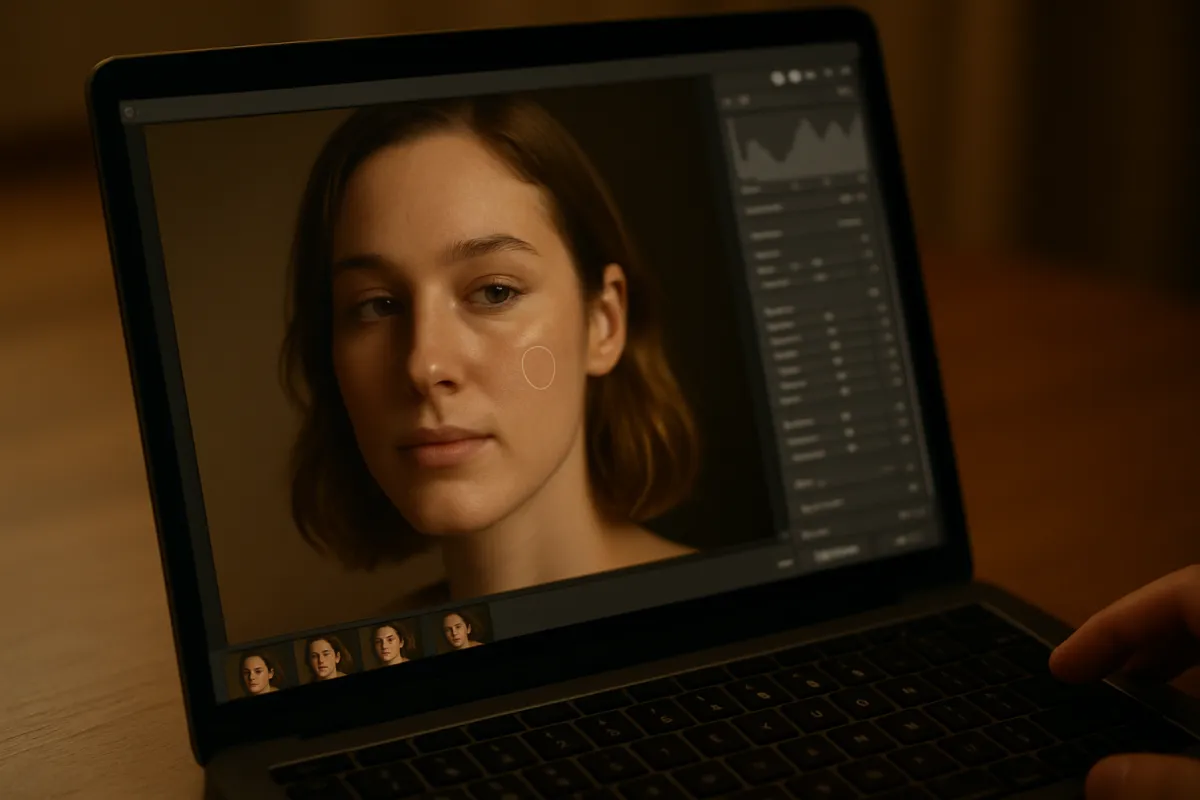
What's on this page
- Why a Laptop’s Color Accuracy Matters More Than Its Benchmark Score
- Who This Comparison Is For
- Three Tiers at a Glance
- Screen Color Accuracy: How to Actually Check It
- RAM: The Spec That Decides Smoothness
- Processor: What It Actually Speeds Up
- Storage: Planning Realistically for RAW Files
- Graphics: A Nice-to-Have, Not a Requirement
- Laptop vs Desktop for Photo Editing
- Input Devices: Trackpad, Keyboard and a Graphics Tablet
- Weight, Build Quality and Travel Durability
- A Worked Example: Two Photographers, Two Laptop Needs
- Ports and Connectivity Worth Checking
- Operating System Considerations for Photo Editing
- External Monitors as a Budget-Stretching Alternative
- Battery Life and Thermal Throttling During Editing
- Buying Refurbished or Previous-Generation for Photo Editing
- Tethering and Connecting Directly to a Camera
- Multi-Monitor Setups for Serious Editing
- Software Licensing: Subscription vs One-Time Purchase
- Troubleshooting Common Laptop Editing Problems
- Common Buying Mistakes
- Your Photo Editing Laptop Checklist
- The Bottom Line
Short answer: The best laptop for photo editing prioritizes four things before raw performance benchmarks: a screen accurate enough that color and exposure decisions hold up on other screens, enough RAM to keep a large RAW file and the editing software responsive at once, a processor fast enough that exports and batch operations do not become a coffee break, and realistic storage planning that accepts external or cloud storage for long-term archives rather than demanding everything fit internally. A color-accurate mid-range laptop with generous RAM beats a cheaper laptop with an impressive-sounding processor and a poor screen, every time.
Laptop shopping for photo editing runs into the same trap as camera shopping: every listing leads with the spec that benchmarks well and photographs impressively on a spec sheet, processor speed and screen resolution chief among them, while staying quiet about the spec that actually decides whether editing on that laptop feels smooth and whether the finished photos look correct once they leave that one screen. A laptop’s processor speed matters, but a laptop’s color accuracy is the spec most editing workflows quietly depend on and most buying guides barely mention.
KitBorough’s photo editing workflow field note covers the editing process itself in depth, the order of operations, reading a histogram, color and sharpening. This field note covers the hardware underneath that workflow specifically: which laptop specs actually matter for a smooth, correct editing experience, and which ones are mostly marketing. Price your own realistic budget against the specs below in the laptop spec planner.
Key takeaways
- Screen color accuracy is the single most consequential spec, since an inaccurate screen makes every editing decision against a false reference that only reveals itself on a different screen later.
- RAM decides whether editing software stays responsive while a large RAW file is open; running low shows up as sluggish lag rather than a crash.
- Processor speed mainly affects how long batch exports and heavier filters take, a real but recoverable cost, unlike a bad screen's unrecoverable color error.
- Dedicated graphics matters less for photo editing specifically than for video editing, and is a lower priority than RAM if a budget forces a trade-off.
- Storage should be planned realistically, with external or cloud storage for long-term archives rather than expecting an entire photo library to fit internally.
Why a Laptop’s Color Accuracy Matters More Than Its Benchmark Score
A laptop’s processor benchmark score is easy to compare and genuinely does affect editing speed, which is exactly why it dominates most laptop buying advice. Screen color accuracy does not show up in a simple benchmark number at all, and its effect on editing is more insidious: an inaccurate screen does not slow anything down, it simply shows a wrong version of the photo while every editing decision gets made against that wrong version with complete confidence.
This is the single reason a photo edited on a color-inaccurate screen can look correct, even good, on that screen and then look noticeably off, too warm, too dark, oversaturated, the moment it is viewed on a different, more accurate screen, printed, or shared on a platform where other people see it on their own devices. A fast processor saves time; an accurate screen saves the actual correctness of every editing decision made on the laptop, which is why this field note treats it as the leading spec rather than an afterthought.
Who This Comparison Is For
This field note is written for someone buying or upgrading a laptop specifically to edit photos, whether as a serious hobby, alongside a camera purchase, or as the primary tool for a photography side business, who wants to spend a laptop budget on the specs that actually matter for that specific task rather than the specs that market well in a general laptop comparison. It assumes photo editing, not primarily video editing or gaming, as the main workload, though many of the same principles carry over.
If the editing workflow itself, rather than the hardware running it, is the more pressing question, our photo editing workflow field note covers that directly.
Three Tiers at a Glance
Laptops for photo editing split into three practical tiers. Budget, roughly under $800, where RAM and a reasonably current processor matter more than screen quality or storage size, and both deserve priority if the budget forces a trade-off. Mid-range, roughly $800 to $1,500, where a genuinely more accurate screen, more RAM and a faster processor combine for a noticeably smoother experience with larger files. Premium, above $1,500, adding the most accurate, often factory-calibrated screens, the fastest processors, and sometimes dedicated graphics that accelerates specific operations in more demanding editing software.
Where a mid-range photo editing laptop budget should actually go
Illustrative share of a mid-tier laptop's value, out of 100, across the specs that most directly affect photo editing specifically, rather than general laptop use.
Screen accuracy and RAM together claim nearly two thirds of what actually matters for photo editing specifically, which is the opposite of how most general laptop marketing weights its own specs.
Screen Color Accuracy: How to Actually Check It
A laptop’s screen specification typically advertises resolution prominently and buries or omits color accuracy entirely, which is backwards for photo editing specifically. Looking for a stated color gamut coverage, a percentage of a standard color space the screen can actually display, and whether the laptop ships factory-calibrated, gives a far better signal of editing suitability than resolution alone, since a laptop can have an extremely sharp, high-resolution screen that still renders colors inaccurately.
A simple, practical check before or shortly after buying: open a well-exposed, familiar photo on the laptop and compare it side by side against the same photo on a different device, a phone or another computer, in consistent lighting. A laptop screen that looks noticeably different in color temperature, saturation or brightness from multiple other references is signaling a real accuracy problem worth taking seriously before trusting any edit made on it. A dedicated hardware calibration tool gives a far more precise, ongoing answer and is a worthwhile investment for anyone whose edited photos need to look consistent for other viewers.

RAM: The Spec That Decides Smoothness
RAM holds the active file, the editing software itself, and often a cache of recent edits all at once, and running short of it does not typically crash the software outright, it shows up as the editor becoming noticeably laggy and unresponsive as the operating system swaps data to slower storage in its place. This sluggishness is the single most common real-world symptom of an underpowered laptop for photo editing, and it gets worse as RAW file sizes increase and as more editing history accumulates within a single session.
A comfortable working amount of RAM for enthusiast photo editing sits meaningfully above what a general-purpose laptop marketed for browsing and office work typically ships with, and this is one of the clearest, most direct upgrades available on a laptop budget, since RAM’s effect on editing smoothness is immediate and obvious the moment a large file or a long editing session is involved. If a laptop model offers a RAM upgrade option at purchase, this is consistently one of the highest-value places to spend extra budget in this entire comparison.
What actually slows down a real photo editing session, ranked
Illustrative weighting, out of 100, of which laptop limitation most often frustrates someone editing photos seriously, drawn from common experience rather than a measured study.
RAM and screen accuracy dominate the list well ahead of graphics performance, which is exactly why this field note weighs them far more heavily than a laptop's marketed graphics card.
Processor: What It Actually Speeds Up
A faster processor mainly affects how long specific, bounded tasks take: exporting a large batch of files, applying a heavier filter or noise reduction tool, or scrolling smoothly through a large library of thumbnails. These are real costs, a slow export genuinely wastes time waiting, but they are recoverable costs in a way a bad screen’s color error is not, since waiting longer for an export still produces the same correct result eventually.
This is why this field note ranks processor speed below screen accuracy and RAM despite it being the spec most laptop marketing leads with. A reasonably current, mid-range processor handles most enthusiast photo editing comfortably, and the jump to a top-tier processor mainly pays off for someone regularly batch-processing very large numbers of files or applying the most computationally heavy editing operations repeatedly, rather than for typical, occasional editing sessions.
Storage: Planning Realistically for RAW Files
RAW files, the uncompressed or lightly compressed format most serious photo editing starts from, run considerably larger than the compressed JPEG files most general laptop storage estimates are implicitly built around, and a serious photo hobby accumulates storage use faster than new buyers typically expect. A single extended shoot can produce enough RAW files to meaningfully dent even a generously sized internal drive, and a laptop that seemed to have ample storage at purchase can feel surprisingly tight within a year of regular shooting.
Planning for external storage, a dedicated external drive for active projects and long-term archives, or cloud storage for backup and access from multiple devices, is a more realistic long-term strategy than expecting an entire growing photo library to live entirely on a laptop’s internal drive. Our photo and video backup field note covers building a dependable backup system that pairs naturally with this kind of storage planning, protecting against both running out of space and losing files entirely to a single drive failure.
Graphics: A Nice-to-Have, Not a Requirement
Dedicated graphics hardware matters considerably more for video editing and for gaming than it does for photo editing specifically, since most photo editing software’s core operations, applying adjustments, managing a library, exporting files, lean more heavily on the processor and RAM than on graphics hardware. Modern editing software does accelerate some specific operations, particular filters or AI-assisted tools, using dedicated graphics where available, which makes it a genuine nice-to-have rather than a pure marketing spec.
If a budget forces a direct trade-off between more RAM or a better screen versus dedicated graphics, prioritizing RAM and screen accuracy first is the better-informed choice for photo editing specifically, reserving a dedicated graphics card as a welcome bonus rather than a core requirement the way it would be for a video-editing-focused or gaming-focused laptop purchase.
Laptop vs Desktop for Photo Editing
A desktop computer at a similar price point generally outperforms a laptop on raw processing power, RAM capacity, and future upgradability, since a laptop’s compact size fundamentally constrains cooling capacity and component choice in ways a larger desktop case does not face. For a fixed editing setup with no need to travel, a desktop frequently represents better value per dollar spent on the specs that matter for editing.
A laptop’s real, genuine advantage is portability, the ability to edit on location at a client shoot, at a different desk, or anywhere away from a single fixed setup, which matters enormously for some photography workflows, wedding and event photographers delivering quick turnarounds chief among them, and matters very little for a hobbyist who always edits from the same home desk. Being honest about whether portability is a genuine, recurring need rather than a hypothetical nice-to-have is worth doing before paying the real price premium a laptop commands over an equivalently capable desktop, and plenty of serious enthusiasts are genuinely better served by a desktop at the main desk and a far more modest laptop reserved purely for occasional travel review and light culling rather than full editing duty.
Input Devices: Trackpad, Keyboard and a Graphics Tablet
A laptop’s built-in trackpad is usable for basic editing adjustments, but precise selective editing, careful masking or detailed retouching work benefits considerably from a more precise input device than a trackpad or even a mouse typically offers. A graphics tablet with a pressure-sensitive pen, connected via USB to the laptop, gives far finer control over brush-based adjustments and selective edits than a trackpad’s flat, binary click can match, and it is worth considering as a companion purchase for anyone doing detailed retouching regularly rather than quick, broad adjustments.
For editing that is mostly global adjustments, exposure, color, cropping, rather than detailed pixel-level retouching, a precise trackpad or an external mouse is entirely sufficient, and a graphics tablet would be an underused, unnecessary expense sitting next to the laptop far more often than it is actually picked up and used. Being honest about how much detailed, fine-control editing a workflow actually involves avoids over-buying input hardware that will mostly sit unused next to the laptop.
Weight, Build Quality and Travel Durability
For anyone whose workflow genuinely involves editing away from a fixed desk, a laptop’s physical weight and build durability become real, practical considerations beyond pure performance specs. A heavier laptop with a more powerful processor and a larger screen edits comfortably at a desk but becomes a genuine burden carried daily in a bag alongside camera gear, while a lighter, more travel-focused laptop trades some raw performance for day-to-day carrying comfort.
Build quality, how well a laptop’s chassis tolerates the bumps and temperature swings of being carried in and out of bags regularly, matters more for a travel-heavy workflow than it does for a laptop that mostly stays on one desk. Checking for a laptop with a reasonably robust chassis material and a manufacturer’s own stated durability testing, where available, is worth the extra attention for anyone planning to carry their editing laptop to shoots regularly alongside camera gear that already demands its own careful handling, the same protective instinct our camera bag field note applies to the camera equipment riding in the very same bag.
A Worked Example: Two Photographers, Two Laptop Needs
Editor one: a hobbyist shooting occasionally, editing from the same home desk every time, on a tight budget. The honest move here is prioritizing RAM and a reasonably current processor within a budget-tier laptop, accepting a less impressive screen than a pricier option would offer, and supplementing with an external monitor later if color accuracy becomes a real frustration. A desktop is also worth seriously considering here, since the portability a laptop offers goes largely unused in this specific workflow.
Editor two: a photographer regularly editing client work on location and needing accurate, deliverable color without access to a second monitor. Here, a mid-range or premium laptop with genuine, verified color accuracy and ample RAM is worth the investment, since the lack of portability simply is not an option for this workflow, and an inaccurate screen directly risks client-facing color mistakes with no second monitor available to catch them. Run your own budget, workflow and portability needs through the laptop spec planner to see which tier and which specific spec matters most for your situation.
Ports and Connectivity Worth Checking
A laptop’s physical ports matter more for a photo editing workflow than for general use, since a typical editing setup connects several peripherals at once: an external monitor, a memory card reader, an external drive for backup and archives, and sometimes a graphics tablet or a tethering cable to a camera. Checking that a candidate laptop has enough of the right port types, rather than relying entirely on a single multi-purpose port and a dongle for everything else, meaningfully reduces desk clutter and the ongoing annoyance of hunting for the right adapter mid-session, a small but real friction cost that adds up across years of regular editing use.
A built-in memory card reader, increasingly left off slimmer laptop designs in favor of a cleaner, thinner chassis, is a genuine convenience worth checking for specifically, since photo editing workflows transfer card-based files far more often, and in far larger batches, than a typical general-use laptop buyer ever would. Its absence is not a dealbreaker, a card reader dongle solves it cheaply, but it is one more small piece of hardware to keep track of, charge if it needs power, and not lose before a shoot that depends on it.
Operating System Considerations for Photo Editing
The choice between major laptop operating systems matters less for photo editing than many buyers assume, since the leading editing software titles run comparably well across the major platforms available today. The more practical consideration is ecosystem familiarity and whether specific plugins, color calibration tools, or workflow habits already established are tied to a particular platform, since switching platforms can mean re-learning some muscle memory and occasionally losing access to a specific tool with no equivalent on the other side.
For someone starting fresh with no existing platform investment, this decision is reasonably made on other factors entirely, general comfort, other software needs, and budget at a given spec level, rather than any inherent photo editing advantage one platform holds over another at comparable price points.
External Monitors as a Budget-Stretching Alternative
A genuinely useful strategy for stretching a tighter laptop budget is pairing a more modest laptop with a dedicated external monitor chosen specifically for color accuracy, used at a home desk for the bulk of serious editing while the laptop’s own screen handles travel and quick checks. A dedicated external monitor built for color-accurate work frequently costs less than the price difference between a budget and premium laptop’s built-in screen, while offering comparable or better accuracy for the stationary portion of an editing workflow.
This approach also sidesteps the laptop screen’s inherent size limitation, since a larger external monitor shows more of a high-resolution image at once, genuinely useful for judging fine detail, noise and sharpening at a size a laptop’s own screen cannot match regardless of its resolution. For anyone editing primarily from one location with occasional travel, this split approach often delivers better real-world editing accuracy per dollar than spending the entire budget on the laptop’s built-in screen alone.
Battery Life and Thermal Throttling During Editing
Photo editing, especially exporting a large batch of files or applying heavier processing operations, draws meaningfully more power than general browsing or document work, and a laptop’s advertised battery life figure, like a camera’s rated battery life, is almost always measured under lighter, more intermittent use than sustained editing actually represents. Expect real battery life during active editing sessions to run considerably shorter than the marketed figure, and plan to work plugged in for any extended editing session away from a reliable outlet.
Thermal throttling, where a laptop automatically reduces processor speed to manage heat during sustained heavy use, is a related and often underappreciated consideration: a laptop that benchmarks impressively in a short burst test can still slow down noticeably during a long batch export specifically because of heat buildup inside its compact chassis. Reading reviews that specifically mention sustained performance under extended load, not just short benchmark scores, gives a more realistic picture of how a candidate laptop will actually perform during a real editing session that runs well past a few minutes.
Buying Refurbished or Previous-Generation for Photo Editing
The used and refurbished laptop market works well for photo editing specifically, for similar reasons it works well for cameras: the specs that matter most, RAM and a capable processor, tend to be available at a meaningful discount a generation or two back, often with only a modest real-world performance gap for typical enthusiast editing workloads. A certified refurbished laptop from a reputable seller, carrying some form of warranty or return window, meaningfully reduces the risk compared with an uncertified private sale.
One check worth adding specifically for a refurbished laptop intended for editing: verify the actual screen on the unit received matches the panel specification advertised, since manufacturers occasionally use more than one screen supplier across units of the same model, and a refurbished unit’s exact screen history is less consistently documented than a new purchase’s would be. Running the same color-accuracy comparison test described earlier in this field note immediately upon receiving a refurbished laptop catches this before it becomes a problem discovered well into a client project.
Tethering and Connecting Directly to a Camera
Some photo editing workflows benefit from tethering, connecting a camera directly to the laptop so images transfer and appear in the editing software immediately as they are shot, rather than transferring a memory card afterward. This is common in studio and product photography workflows where reviewing a shot on a larger, more accurate laptop screen immediately, rather than on a camera’s small rear display, meaningfully improves the shoot itself.
Checking that a candidate laptop has the right physical ports, or that an appropriate adapter is readily available, for a specific camera’s tethering connection is worth doing before a shoot day if this workflow matters, since discovering a port mismatch in the field is a far worse moment than catching it during the laptop buying process. Our SD card buying guide covers the alternative, more common workflow of transferring via memory card and a card reader, which remains the simpler and more widely compatible option for most photographers who do not specifically need the immediacy tethering provides, and which places far fewer specific demands on a laptop’s exact port selection than a camera-specific tethering cable does.
Multi-Monitor Setups for Serious Editing
Connecting a laptop to one or more external monitors at a home desk, while relying on the laptop’s own screen for portability away from that desk, is a genuinely effective hybrid approach worth planning for when choosing a laptop. Checking a candidate laptop’s video output capability, how many external monitors it can drive at once and at what resolution, is worth confirming against actual editing ambitions before assuming any laptop handles a desired multi-monitor setup without issue.
A common, effective arrangement pairs a color-accurate external monitor for the main editing view with the laptop’s own screen running a secondary panel, like the tool palette or a histogram, off to the side, mimicking a more traditional desktop editing setup’s extra screen real estate while keeping the whole system portable when travel is actually needed.
Software Licensing: Subscription vs One-Time Purchase
While not strictly a laptop hardware question, software licensing affects the total cost of a photo editing setup enough to mention briefly here. Many leading editing software titles have shifted toward a subscription model, a recurring cost that continues for as long as the software is used, while some alternatives still offer a one-time purchase license, a larger upfront cost with no ongoing payment required afterward.
Neither model is universally better, and the right choice depends on usage patterns: a subscription suits someone who wants continuous access to the newest features and is comfortable with an ongoing cost, while a one-time purchase suits someone who prefers a single upfront cost and is comfortable using a specific software version without continuous updates. Factoring this ongoing or one-time software cost into the total photo editing budget, alongside the laptop itself, gives a more complete and honest picture of what a serious editing setup actually costs over its first few years.
Troubleshooting Common Laptop Editing Problems
A handful of complaints come up repeatedly with laptops used for photo editing, and most trace back to a specific, identifiable cause. The editing software feels sluggish only with certain files. This points to RAM running short specifically with larger RAW files or files from a higher-resolution camera; closing other applications running in the background frees up RAM immediately and is worth testing before assuming the laptop itself is simply too slow. Exports take far longer than expected. Check whether the laptop is running on battery power rather than plugged in, since many laptops deliberately throttle performance on battery to extend runtime, which directly slows export and processing tasks.
Colors look different after moving a file between the laptop and another device. This is the color accuracy problem covered throughout this field note, and it is worth running the calibration check described earlier rather than assuming the file itself is somehow at fault. The laptop gets noticeably hot and slows down during a long editing session. This is thermal throttling, covered earlier, and ensuring adequate airflow, a hard flat surface rather than a soft one like a bed or a lap that blocks the vents, measurably helps sustained performance during long sessions. Storage fills up faster than expected. This is the RAW file size issue covered earlier in this field note; moving completed projects to external or cloud storage regularly, rather than letting them accumulate indefinitely on the internal drive, prevents this from becoming an urgent, disruptive problem mid-project.
Common Buying Mistakes
- Chasing processor benchmarks over screen color accuracy. A fast laptop with a poor screen produces wrong-looking edits quickly rather than correct-looking edits slowly.
- Underestimating RAM needs. Running short shows up as frustrating lag during every session with a large file open, not a one-time inconvenience.
- Assuming resolution and color accuracy are the same thing. A sharp, high-resolution screen can still render colors inaccurately; check for stated color gamut coverage specifically.
- Prioritizing dedicated graphics over RAM for a pure photo editing workflow. Graphics matters more for video editing than for most photo editing operations.
- Expecting an entire growing photo library to fit on internal storage alone. Plan for external or cloud storage for long-term archives from the start.
- Buying a laptop for portability that will not actually be used away from a desk. A desktop at a similar price often outperforms a laptop when portability is not a genuine, recurring need.
Your Photo Editing Laptop Checklist
- Check for stated color gamut coverage, not just screen resolution, before trusting a laptop's editing suitability.
- Prioritize RAM ahead of processor speed if a budget forces a trade-off.
- Treat dedicated graphics as a nice-to-have for photo editing specifically, not a requirement.
- Plan realistic storage with external or cloud backup rather than expecting internal storage alone to suffice.
- Decide honestly whether portability is a genuine, recurring need before paying the laptop price premium over a desktop.
- Test color accuracy against a known reference photo on a different device before trusting client-facing edits.
- Consider pairing a more modest laptop with a dedicated color-accurate external monitor to stretch a tighter budget.
- Read reviews for sustained performance under extended load, not just short benchmark scores.
The Bottom Line
A laptop is, in the end, simply a tool that sits between a camera’s file and a finished, shareable photograph, and every single decision made during an editing session is only ever as trustworthy as the screen that decision was actually judged against in the first place. The best laptop for photo editing is not the one with the most impressive processor benchmark, it is the one whose screen renders color accurately enough that edits hold up elsewhere, with enough RAM to keep large files and the editing software responsive throughout a real session. A color-accurate mid-range laptop with generous RAM consistently serves a photo editing workflow better than a flashier, more expensive laptop that compromises on either.
Prioritize screen accuracy and RAM ahead of processor speed and graphics when a budget forces a choice, plan realistic external or cloud storage from the start rather than expecting an entire photo library to fit internally, and be honest about whether portability is a genuine need before paying a laptop’s price premium over an equivalently capable desktop. Price your own workflow and budget through the laptop spec planner, and once the hardware is settled, our photo editing workflow field note picks up the actual editing process from here, while our backup field note covers protecting the finished files once the editing session is done.
This field note compares laptop specification categories and tiers relevant to photo editing rather than specific products: no brand or model is named on purpose, since listings, specifications and prices change faster than an article can track. Figures for RAM needs, storage growth and performance weighting are illustrative starting points for a general enthusiast workflow, not a specification for any one laptop, so verify the exact color gamut coverage, RAM configuration and sustained performance of any specific listing before buying.
Frequently asked questions
Does photo editing really need a powerful laptop, or will any laptop work?
A basic laptop will technically run photo editing software, but a handful of specific specs decide whether that experience is smooth or frustrating: enough RAM to hold a large file and the editor's own overhead at once, a processor that handles batch exports and filters without a long wait, and a screen accurate enough that edits look the same elsewhere. A laptop missing all three will open and edit photos, slowly and with colors that may not match what anyone else sees.
Is screen color accuracy actually more important than processor speed for photo editing?
For the final result, yes, arguably more so. A slow processor costs time, which is frustrating but recoverable by waiting. An inaccurate screen costs correctness, meaning every editing decision, color grading, exposure, skin tone, is being made against a false reference, and the error only becomes visible once the photo is viewed on a different, more accurate screen or printed. A fast laptop with a poor screen produces wrong-looking edits quickly; a color-accurate screen is the one spec that is hard to work around after the fact.
How much RAM does a laptop actually need for photo editing?
This depends on file size and how many large files are open at once, but a comfortable working minimum for most enthusiast photo editing, including reasonably large RAW files, sits meaningfully above what a laptop marketed for general browsing and office work typically includes. Running out of RAM during an edit does not usually crash the software outright; it shows up as the editor becoming sluggish and laggy as it swaps data to slower storage instead, which is the most common real-world symptom of an underpowered laptop for this task.
Do I need a dedicated graphics card for photo editing, or is integrated graphics enough?
Dedicated graphics matters less for photo editing specifically than it does for video editing or gaming, since most photo editing software leans more heavily on the processor and RAM for its core operations. Dedicated graphics does accelerate some specific operations in modern editing software, so it is a genuine nice-to-have rather than a requirement, and the money is usually better spent on RAM and storage first if a budget forces a choice.
How much storage does a laptop need for photo editing?
More than most buyers expect, because RAW files run considerably larger than the compressed JPEG files most laptop storage estimates are built around, and a serious photo hobby accumulates storage use quickly across even a single year of shooting. Planning for external or cloud storage for long-term archives, while keeping only active projects on the laptop's own drive, is a more realistic strategy than trying to fit an entire photo library onto internal storage alone.
Is a laptop actually better than a desktop for photo editing?
A desktop at a similar price generally outperforms a laptop on raw processing power and upgradability, since a laptop's compact size constrains cooling and component choice compared with a desktop case. A laptop's real advantage is portability, editing on location, at a client's home, or anywhere away from a fixed desk, which matters enormously for some workflows and not at all for others. Choose based on whether editing away from a fixed location is a genuine, recurring need, not as a default.
Can a budget laptop under $800 actually handle serious photo editing?
Yes, for most enthusiast-level photo editing, provided the specific specs that matter, RAM and a reasonably current processor, are prioritized over a more expensive screen or a larger storage drive that could be supplemented externally instead. A budget laptop that gets RAM and processor right handles everyday photo editing comfortably; one that compromises on both to hit a lower price point will feel sluggish regardless of its marketing claims.
How do I know if my laptop's screen is actually accurate enough for editing?
A basic, free way to start is comparing how a known, well-exposed photo looks on your laptop against how it looks on a different device, like a phone or another computer, in the same lighting; a laptop screen that looks noticeably different in color or brightness from multiple other references is a sign its color accuracy is questionable. A proper hardware calibration tool gives a far more precise answer and is worth the investment for anyone whose edited photos need to look consistent across different viewers and screens.